Before you start
To post updates for you, I need access permission for your Facebook Page, your Instagram account and your Google Business Profile. You give me those permissions yourself (you "invite" me to post for you), from your own account, and this page tells you how.
I never need your password and I will never ask for it.
I won't post anything on your profiles until you subscribe. Once I've checked your invites, I'll email you a link to subscribe.
What you will need to do this:
- Your phone, in case Meta (Facebook + Instagram) or Google sends you a security code. If you do not have a phone, access to the email address on your Facebook and Google accounts will usually do.
- Your Facebook login (the one you use to manage your business Page).
- Your Instagram account, set up as a Business or Creator account. Switching is free, in your Instagram settings.
- The Google login you use for your Google Business Profile.
Part 1: Give me access to your Facebook and Instagram
You will add WebFix Gary as a Partner on your Facebook Page and your Instagram account. Partners work under your business, and you can remove them at any time.
2090879714901594
Copied!
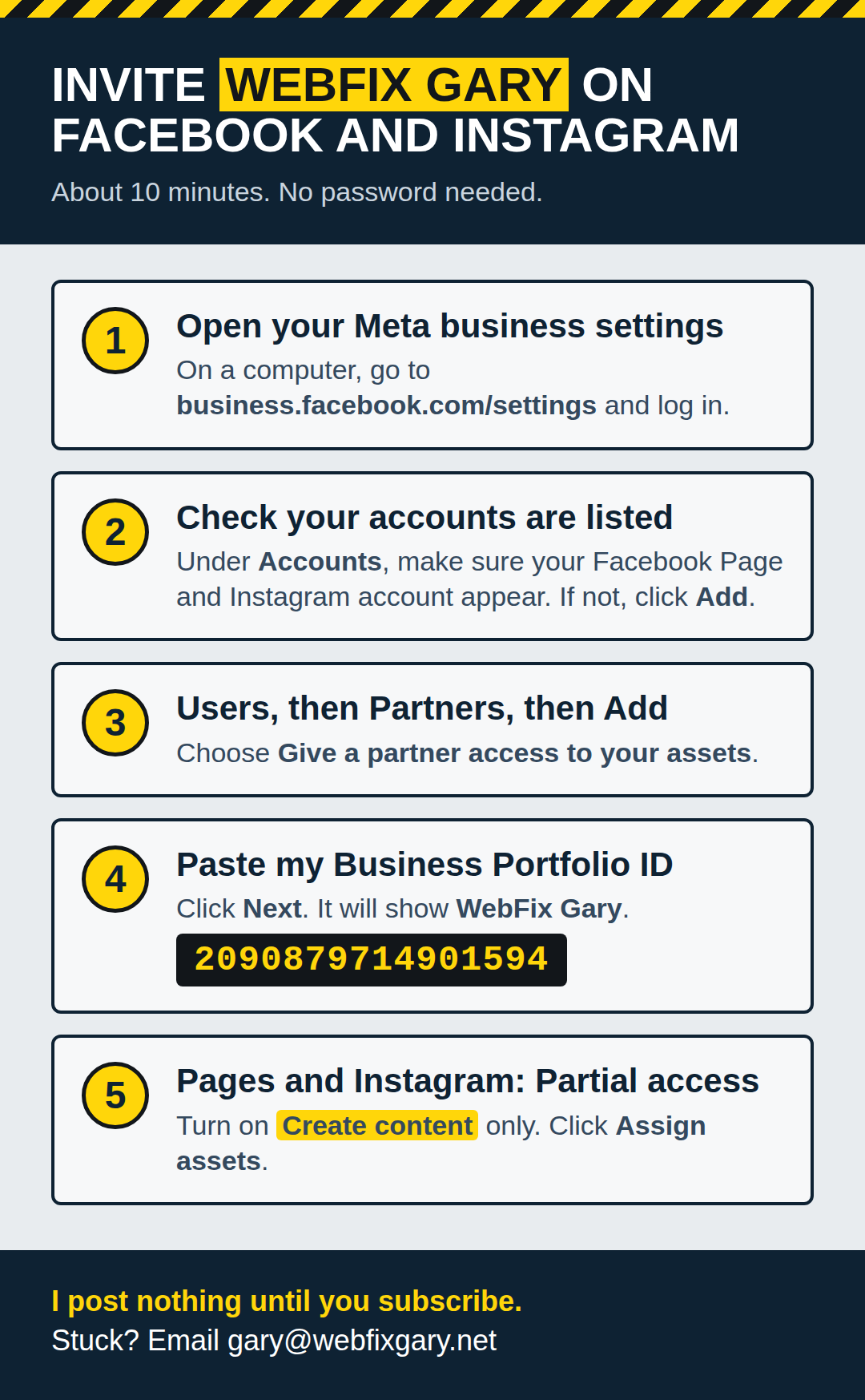
The same steps are written out below. Tap the picture to enlarge it.
2090879714901594
Copied!
- On a computer if possible, go to business.facebook.com/settings and log in with your Facebook account. If Facebook offers to set up a business account (called a Business Portfolio), accept and use your business name. It is free.
- Check that your Facebook Page is listed under Accounts, then Pages. If it is not there, click Add, choose Add a Page, and select your business Page. Then check your Instagram account is listed under Accounts, then Instagram accounts. If it is not, click Add and log in to your Instagram.
- In the left menu under Users, click Partners.
- Click Add, then choose Give a partner access to your assets.
- Paste in my Business Portfolio ID from the box above and click Next. On Facebook, my business is listed as WebFix Gary (with a space). That is me.
- Choose Pages, select your business Page, and give me Partial access with Create content switched on. Then choose Instagram accounts, select your Instagram account, and do the same (Partial access with the content permission on). That is all I need to post updates.
- Click Assign assets.
Part 2: Give me access to your Google
You will invite me as a Manager of your Google Business Profile. You remain the Owner.
webfixgary.net [at] gmail [dot] com
Copied!
- Search Google for your business name while logged in to the Google account that owns your profile. Your Business Profile appears with a management menu.
- Click the three dots menu (Business Profile settings).
- Click People and access.
- Click the Add button at the top left.
- Paste in my email address from the box above.
- Under Access, choose Manager. Please do not choose Owner.
- Click Invite.
Part 3: Tell me you are done
Once you have sent the invites for Facebook, Instagram and Google, fill this in. I will check them and email you a link to subscribe. I won't post anything until you do.
Thanks, . Your details are in.
- Business
- Postcode
- Trade
Next, I will check your invites and email you a link to subscribe. If anything is missing, I will tell you exactly what to fix. I won't post anything until you subscribe.
Continue to paymentWrong details? Start again
What I can and cannot do
On Facebook and Instagram (Meta), I can (and will): create and schedule posts on your Facebook Page and your Instagram account.
On Facebook and Instagram (Meta), I cannot: add or remove people, change who runs your Page or Instagram account, or delete either of them.
On Google, I can (and will): publish posts, add photos. I could (but will NOT) update business details such as hours and services, and respond to reviews as your business. Ask if having me respond to your reviews would help you.
On Google, I cannot: add or remove other users, transfer ownership, or delete your profile. You remain the Owner.
If something does not work
- Facebook says you do not have permission: you probably are not a full-control admin of the Page. It may have been set up by a previous web person. Ask them to make you a full-control admin, then come back to this page.
- Your Page will not appear in Business Settings: add it under Accounts, then Pages, as in step 2. You need to be an admin of the Page.
- Your Instagram will not appear, or will not share: it needs to be a Business or Creator account. Switch it in your Instagram settings (it is free), link it to your Facebook Page, then add it under Accounts, then Instagram accounts, as in step 2.
- Facebook keeps asking for a code: approve it on your phone or enter the code, then try again.
- You cannot see "Manage" or "People and access" on Google: you are likely logged in to the wrong Google account. Try the other Google accounts you use for the business, or ask whoever set up your profile to add you as an Owner.
- Google says the profile is not verified: verify the profile first, then invite me. Google will walk you through it.
- Anything else: it is fine to stop here and come back when you have a quiet moment. Part 3 is only for when your invites are sent.
You are always in control
You can remove my access from Facebook, Instagram or Google at any time, whether or not you cancel. The steps are on the How to Cancel page. Thanks for trusting me with your online presence.